标签: Python

  • 【Python】提取视频画面并生成PPT

    比较笨的方法,用来提取PPT课程视频画面,并生成对应的PPT,代码检测黑屏但没有检测白屏,没有检测重复画面(因为有些人讲课会来回翻PPT),因此还有优化空间。内存占用会逐渐增多,不过测试没有出现崩溃的情况。

    PS:做完发现可以直接问讲课人要PPT原件,我,,,

    import cv2
    import os
    import numpy as np
    from pptx import Presentation
    from pptx.util import Inches
    from skimage.metrics import structural_similarity as ssim
    import tkinter as tk
    from tkinter import filedialog, messagebox
    
    # 选择视频和输出目录
    def select_video_and_output():
        video_path = filedialog.askopenfilename(title="选择视频文件", filetypes=[("MP4 files", "*.mp4")])
        if not video_path:
            messagebox.showwarning("选择视频", "未选择视频文件")
            return None, None
        
        output_dir = filedialog.askdirectory(title="选择输出目录")
        if not output_dir:
            messagebox.showwarning("选择输出目录", "未选择输出目录")
            return None, None
    
        pptx_path = os.path.join(output_dir, "output_presentation.pptx")
        return video_path, pptx_path
    
    # 处理视频并生成 PPT
    def process_video_to_ppt(video_path, pptx_path):
        os.makedirs("ppt_images", exist_ok=True)
        
        cap = cv2.VideoCapture(video_path)
        _, prev_frame = cap.read()
        prev_gray = cv2.cvtColor(prev_frame, cv2.COLOR_BGR2GRAY)
    
        frame_count = 0
        slide_count = 0
        images = []
        similarity_threshold = 0.95  # 提高 SSIM 阈值,减少相似图片
        brightness_threshold = 10  # 黑屏检测(平均亮度 < 10 认为是黑屏)
    
        def process_frame(frame):
            """ 计算 SSIM 相似度,判断是否保存该帧 """
            nonlocal prev_gray, slide_count
            gray = cv2.cvtColor(frame, cv2.COLOR_BGR2GRAY)
            score = ssim(prev_gray, gray)
    
            # 计算平均亮度,过滤黑屏
            avg_brightness = np.mean(gray)
            if avg_brightness < brightness_threshold:
                return  # 跳过黑屏帧
    
            if score < similarity_threshold:  
                img_path = os.path.join("ppt_images", f"slide_{slide_count}.jpg")
    
                # 确保不同的幻灯片才保存
                if len(images) == 0 or images[-1] != img_path:  
                    cv2.imwrite(img_path, frame)
                    images.append(img_path)
                    slide_count += 1
                    prev_gray = gray  # 只在确认变化时更新参考帧
    
        while cap.isOpened():
            ret, frame = cap.read()
            if not ret:
                break
    
            # 仅每隔 15 帧处理一次
            if frame_count % 15 == 0:
                process_frame(frame)
    
            frame_count += 1
    
        cap.release()
        # cv2.destroyAllWindows()
    
        # 创建 PPT
        prs = Presentation()
        for img in images:
            slide = prs.slides.add_slide(prs.slide_layouts[5])  # 空白幻灯片
            left, top, width, height = Inches(0), Inches(0), Inches(10), Inches(7.5)
            slide.shapes.add_picture(img, left, top, width, height)
    
        prs.save(pptx_path)
        messagebox.showinfo("完成", f"PPTX 生成完成: {pptx_path}")
    
    # 主函数
    def main():
        root = tk.Tk()
        root.withdraw()  # 隐藏主窗口
        video_path, pptx_path = select_video_and_output()
        if video_path and pptx_path:
            process_video_to_ppt(video_path, pptx_path)
    
    if __name__ == "__main__":
        main()
    
  • 【Python】使用cwebp、gif2webp、exiftool实现保留exif信息的WebP转换

    此前写了个使用cwebp、gif2webp的脚本,但是由于cwebp目前在win的元数据提取存在问题,因此我们可以使用已经支持exif提取和写入的exiftool进行最后一步的转换,这样我们的图片压缩、转码都在官方库得以实现。

    前置条件:

    cwebp、gif2webp、exiftool三个组件都注册到系统环境变量。python则使用pil库用于分辨率获取。

    实现效果:

    使用pil库对分辨率进行获取,但是不介入压缩过程,因为cwebp目前没法获取图片分辨率,使用pil库进行是否执行resize的判断。

    使用cwebp处理静态png、jpg,使用gif2webp处理gif图,启用mt多线程,压缩质量85,resize到2560最长、宽边,exiftool采用”-overwrite_original”来避免生成两个图片。

    测试效果:

    该图片原图7M多,压缩质量选择85,可能由于细节较为丰富,压缩到WebP大小仍为1M左右,还是比较大,不过细节保留充分,同时保留了EXIF信息。

    import tkinter as tk
    from tkinter import filedialog, messagebox
    import os
    import subprocess
    from PIL import Image
    
    def validate_file(input_path):
        input_path = os.path.abspath(input_path)
        if not os.path.exists(input_path):
            raise FileNotFoundError(f"文件 {input_path} 不存在,请检查路径。")
        return input_path
    
    def get_resized_dimensions(width, height, max_size):
        if width > height:
            new_width = max_size
            new_height = int((new_width / width) * height)
        else:
            new_height = max_size
            new_width = int((new_height / height) * width)
        return new_width, new_height
    
    def convert_image(input_path, output_path, new_width=None, new_height=None):
        try:
            file_extension = os.path.splitext(input_path)[1].lower()
            if file_extension == ".gif":
                command = ["gif2webp","mt", input_path, "-o", output_path]
            else:
                if new_width and new_height:
                    command = ["cwebp","mt", "-q", "85", "-resize", str(new_width), str(new_height), input_path, "-o", output_path]
                else:
                    command = ["cwebp","mt", "-q", "85", input_path, "-o", output_path]
            subprocess.run(command, check=True)
        except subprocess.CalledProcessError as e:
            raise RuntimeError(f"转换工具运行出错: {e}")
    
    def embed_exif(input_path, output_path):
        try:
            command = ["exiftool", "-overwrite_original", "-tagsfromfile", input_path, "-all:all", output_path]
            subprocess.run(command, check=True)
        except subprocess.CalledProcessError as e:
            raise RuntimeError(f"EXIF 数据嵌入失败: {e}")
    
    def convert_to_webp(input_path, max_size=2560):
        try:
            # 验证文件路径
            input_path = validate_file(input_path)
            output_path = os.path.splitext(input_path)[0] + ".webp"
    
            # 使用 PIL 获取图像分辨率
            with Image.open(input_path) as img:
                width, height = img.size
                if width <= max_size and height <= max_size:
                    convert_image(input_path, output_path)
                else:
                    new_width, new_height = get_resized_dimensions(width, height, max_size)
                    convert_image(input_path, output_path, new_width, new_height)
    
            # 嵌入 EXIF 数据
            embed_exif(input_path, output_path)
    
            return f"图片已转换并保存为 {output_path}"
    
        except (subprocess.CalledProcessError, FileNotFoundError) as e:
            return str(e)
        except Exception as e:
            return f"处理文件时发生错误: {e}"
    
    def select_files():
        file_paths = filedialog.askopenfilenames(
            title="选择图片文件",
            filetypes=[("*所有图片格式", "*.jpg;*.jpeg;*.png;*.gif"),
                       ("JPEG 图片", "*.jpg;*.jpeg"),
                       ("PNG 图片", "*.png"),
                       ("GIF 图片", "*.gif")]
        )
        if file_paths:
            for path in file_paths:
                file_listbox.insert(tk.END, path)
    
    def convert_and_save_batch():
        files = file_listbox.get(0, tk.END)
        if not files:
            messagebox.showerror("错误", "请选择至少一个图片文件!")
            return
    
        results = [convert_to_webp(file_path) for file_path in files]
        messagebox.showinfo("完成", "\n".join(results))
    
    def clear_list():
        file_listbox.delete(0, tk.END)
    
    root = tk.Tk()
    root.title("批量图片转换为 WebP 工具")
    root.geometry("600x400")
    
    frame = tk.Frame(root)
    frame.pack(pady=10, padx=10, fill=tk.BOTH, expand=True)
    
    scrollbar = tk.Scrollbar(frame, orient=tk.VERTICAL)
    file_listbox = tk.Listbox(frame, selectmode=tk.EXTENDED, yscrollcommand=scrollbar.set)
    scrollbar.config(command=file_listbox.yview)
    scrollbar.pack(side=tk.RIGHT, fill=tk.Y)
    file_listbox.pack(side=tk.LEFT, fill=tk.BOTH, expand=True)
    
    button_frame = tk.Frame(root)
    button_frame.pack(pady=10)
    
    select_button = tk.Button(button_frame, text="选择文件", command=select_files, width=15)
    select_button.grid(row=0, column=0, padx=5)
    
    clear_button = tk.Button(button_frame, text="清空列表", command=clear_list, width=15)
    clear_button.grid(row=0, column=1, padx=5)
    
    convert_button = tk.Button(button_frame, text="批量转换", command=convert_and_save_batch, width=15)
    convert_button.grid(row=0, column=2, padx=5)
    
    root.mainloop()
    
  • 【Python】使用WebP官方库进行WebP转换

    此前的代码使用了Pillow库集成的库,这次使用WebP官方库,对GIF、PNG的处理也比较友好。需要添加WebP的库到系统环境变量后使用。

    功能实现:

    代码使用cwebp、gif2webp两种方式转换不同的格式图片,使用库本身的压缩分辨率方法,压缩图片到2560最长、宽。

    对于gif,该代码可以实现对原图动态的保持,此前使用pillow库则可以设定gif的持续或者最后一帧静帧。

    遗憾:

    没有能够传递exif,win平台中cwebp压根没法有效传递exif信息,显示——Warning: only ICC profile extraction is currently supported on this platform!元数据只有ICC才能支持传递,所以只依靠cwebp是没法很好在win中进行转换的。

    这个问题采用exiftool进行了解决,下篇文章可以看到。

    import tkinter as tk
    from tkinter import filedialog, messagebox
    import os
    import subprocess
    from PIL import Image
    
    def validate_file(input_path):
        input_path = os.path.abspath(input_path)
        if not os.path.exists(input_path):
            raise FileNotFoundError(f"文件 {input_path} 不存在,请检查路径。")
        return input_path
    
    def get_resized_dimensions(width, height, max_size):
        if width > height:
            new_width = max_size
            new_height = int((new_width / width) * height)
        else:
            new_height = max_size
            new_width = int((new_height / height) * width)
        return new_width, new_height
    
    # 使用 cwebp 或 gif2webp 进行转换
    def convert_image(input_path, output_path, new_width=None, new_height=None, cwebp_metadata="none", gif2webp_metadata="none"):
        try:
            file_extension = os.path.splitext(input_path)[1].lower()
            if file_extension == ".gif":
                command = ["gif2webp", "-metadata", gif2webp_metadata, "-mt", input_path, "-o", output_path]
            else:
                if new_width and new_height:
                    command = ["cwebp", "-q", "85", "-resize", str(new_width), str(new_height), "-metadata", cwebp_metadata, "-mt", input_path, "-o", output_path]
                else:
                    command = ["cwebp", "-q", "85", "-metadata", cwebp_metadata, "-mt", input_path, "-o", output_path]
            subprocess.run(command, check=True)
        except subprocess.CalledProcessError as e:
            raise RuntimeError(f"转换工具运行出错: {e}")
    
    def convert_to_webp(input_path, max_size=2560, cwebp_metadata="none", gif2webp_metadata="none"):
        try:
            # 验证文件路径
            input_path = validate_file(input_path)
            output_path = os.path.splitext(input_path)[0] + ".webp"
    
            # 使用 PIL 获取图像分辨率
            with Image.open(input_path) as img:
                width, height = img.size
                if width <= max_size and height <= max_size:
                    convert_image(input_path, output_path, cwebp_metadata=cwebp_metadata, gif2webp_metadata=gif2webp_metadata)
                else:
                    new_width, new_height = get_resized_dimensions(width, height, max_size)
                    convert_image(input_path, output_path, new_width, new_height, cwebp_metadata=cwebp_metadata, gif2webp_metadata=gif2webp_metadata)
    
            return f"图片已转换并保存为 {output_path}"
    
        except (subprocess.CalledProcessError, FileNotFoundError) as e:
            return str(e)
        except Exception as e:
            return f"处理文件时发生错误: {e}"
    
    def select_files():
        file_paths = filedialog.askopenfilenames(
            title="选择图片文件",
            filetypes=[("*所有图片格式", "*.jpg;*.jpeg;*.png;*.gif"),
                       ("JPEG 图片", "*.jpg;*.jpeg"),
                       ("PNG 图片", "*.png"),
                       ("GIF 图片", "*.gif")]
        )
        if file_paths:
            for path in file_paths:
                file_listbox.insert(tk.END, path)
    
    def convert_and_save_batch():
        files = file_listbox.get(0, tk.END)
        if not files:
            messagebox.showerror("错误", "请选择至少一个图片文件!")
            return
    
        cwebp_metadata = "exif"  # 设置cwebp要复制的元数据类型为exif
        gif2webp_metadata = "xmp"  # 设置gif2webp要复制的元数据类型为xmp
        results = [convert_to_webp(file_path, cwebp_metadata=cwebp_metadata, gif2webp_metadata=gif2webp_metadata) for file_path in files]
        messagebox.showinfo("完成", "\n".join(results))
    
    def clear_list():
        file_listbox.delete(0, tk.END)
    
    # 创建主窗口
    root = tk.Tk()
    root.title("批量图片转换为 WebP 工具")
    root.geometry("600x400")
    
    frame = tk.Frame(root)
    frame.pack(pady=10, padx=10, fill=tk.BOTH, expand=True)
    
    scrollbar = tk.Scrollbar(frame, orient=tk.VERTICAL)
    file_listbox = tk.Listbox(frame, selectmode=tk.EXTENDED, yscrollcommand=scrollbar.set)
    scrollbar.config(command=file_listbox.yview)
    scrollbar.pack(side=tk.RIGHT, fill=tk.Y)
    file_listbox.pack(side=tk.LEFT, fill=tk.BOTH, expand=True)
    
    button_frame = tk.Frame(root)
    button_frame.pack(pady=10)
    
    select_button = tk.Button(button_frame, text="选择文件", command=select_files, width=15)
    select_button.grid(row=0, column=0, padx=5)
    
    clear_button = tk.Button(button_frame, text="清空列表", command=clear_list, width=15)
    clear_button.grid(row=0, column=1, padx=5)
    
    convert_button = tk.Button(button_frame, text="批量转换", command=convert_and_save_batch, width=15)
    convert_button.grid(row=0, column=2, padx=5)
    
    root.mainloop()
    
  • 【Python】使用PIL库进行多格式批量转换WebP并压缩分辨率

    网站将逐步切换到WebP格式图片,今天捣鼓了插件在服务器端替换图片,但WP的媒体库却怎么都搞不定了,媒体库会自动生成很多缩略图用于不同的场景,我不想碰它的缩略图生成效果,因此只写单一的转换代码是没法做出完整的效果的。

    退而求其次使用本地对图片进行处理,该脚本使用PIL库,图片分辨率限制为2560最长/宽,可以处理带透明通道的图片,也可以处理GIF,用下来效果还不错。

    1月8日更新:

    【Python】使用WebP官方库进行WebP转换
    【Python】使用cwebp、gif2webp、exiftool实现保留exif信息的WebP转换

    import tkinter as tk
    from tkinter import filedialog, messagebox
    from PIL import Image, ImageSequence
    import os
    
    def resize_image(img):
        max_size = 2560
        width, height = img.size
    
        if width > max_size or height > max_size:
            if width > height:
                new_width = max_size
                new_height = int((new_width / width) * height)
            else:
                new_height = max_size
                new_width = int((new_height / height) * width)
            
            img = img.resize((new_width, new_height), Image.LANCZOS)
        
        return img
    
    def convert_to_webp(input_path):
        try:
            file_extension = os.path.splitext(input_path)[1].lower()
            output_path = os.path.splitext(input_path)[0] + ".webp"
    
            if not os.path.exists(input_path):
                raise FileNotFoundError(f"文件 {input_path} 不存在,请检查路径。")
    
            if file_extension == '.webp':
                return f"文件 {input_path} 已是 WebP 格式,无需转换。"
    
            with Image.open(input_path) as img:
                if file_extension in ['.gif'] and getattr(img, "is_animated", False):
                    frames = []
                    durations = []
                    for frame in ImageSequence.Iterator(img):
                        # 处理透明度
                        if frame.mode == "P":
                            frame = frame.convert("RGBA")
                        
                        # 转换帧为 RGBA 并存储
                        new_frame = frame.copy()
                        frames.append(new_frame)
                        durations.append(frame.info.get('duration', 100))
    
                    # 重复最后一帧
                    if len(frames) > 1:
                        durations[-1] = max(durations[-1], 100) 
    
                    # 保存为动态 WebP
                    frames[0].save(
                        output_path,
                        format="WEBP",
                        save_all=True,
                        append_images=frames[1:],
                        duration=durations,
                        loop=img.info.get('loop', 0),  # 循环次数
                        transparency=0,  # 确保透明度保留
                        quality=85
                    )
                else:
                    # 静态图片处理
                    if img.mode == "P":
                        if "transparency" in img.info:
                            img = img.convert("RGBA")
                        else:
                            img = img.convert("RGB")
    
                    img = resize_image(img)
    
                    if img.mode != "RGBA":
                        img = img.convert("RGBA")
    
                    img.save(output_path, format="WEBP", quality=85)
    
            return f"图片已转换并保存为 {output_path}"
        except Exception as e:
            return f"处理文件时发生错误: {e}"
    
    
    def select_files():
        file_paths = filedialog.askopenfilenames(
            title="选择图片文件",
            filetypes=[("所有图片格式", "*.jpg;*.jpeg;*.png;*.gif;*.webp;*.bmp;*.tiff"), 
                       ("JPEG 图片", "*.jpg;*.jpeg"),
                       ("PNG 图片", "*.png"),
                       ("GIF 图片", "*.gif"),
                       ("WebP 图片", "*.webp"),
                       ("BMP 图片", "*.bmp"),
                       ("TIFF 图片", "*.tiff")]
        )
        if file_paths:
            for path in file_paths:
                file_listbox.insert(tk.END, path)
    
    def convert_and_save_batch():
        files = file_listbox.get(0, tk.END)
        if not files:
            messagebox.showerror("错误", "请选择至少一个图片文件!")
            return
    
        results = []
        for file_path in files:
            result = convert_to_webp(file_path)
            results.append(result)
    
        messagebox.showinfo("完成", "\n".join(results))
    
    def clear_list():
        file_listbox.delete(0, tk.END)
    
    root = tk.Tk()
    root.title("批量图片转换为 WebP 工具")
    root.geometry("600x400")
    
    frame = tk.Frame(root)
    frame.pack(pady=10, padx=10, fill=tk.BOTH, expand=True)
    
    scrollbar = tk.Scrollbar(frame, orient=tk.VERTICAL)
    file_listbox = tk.Listbox(frame, selectmode=tk.EXTENDED, yscrollcommand=scrollbar.set)
    scrollbar.config(command=file_listbox.yview)
    scrollbar.pack(side=tk.RIGHT, fill=tk.Y)
    file_listbox.pack(side=tk.LEFT, fill=tk.BOTH, expand=True)
    
    button_frame = tk.Frame(root)
    button_frame.pack(pady=10)
    
    select_button = tk.Button(button_frame, text="选择文件", command=select_files, width=15)
    select_button.grid(row=0, column=0, padx=5)
    
    clear_button = tk.Button(button_frame, text="清空列表", command=clear_list, width=15)
    clear_button.grid(row=0, column=1, padx=5)
    
    convert_button = tk.Button(button_frame, text="批量转换", command=convert_and_save_batch, width=15)
    convert_button.grid(row=0, column=2, padx=5)
    
    root.mainloop()
  • 【Python】对本地网页进行元素提取并输出Excel

    一些网页通过加载Js来保护页面元素,当我们突破Js得到本地页面时,可以使用BS4库对页面进行分析,提取对应的元素来综合有价值的内容。

    示例代码:

    import requests
    from bs4 import BeautifulSoup
    import pandas as pd
    
    # 发送请求并获取网页内容
    url = 'your_local_or_online_page_url'
    response = requests.get(url)
    soup = BeautifulSoup(response.text, 'html.parser')
    
    # 定义一个空的列表来存储提取的数据
    data = []
    
    # 遍历页面中的项目列表,假设项目数据都在某个父元素中
    projects = soup.find_all('tr', class_='project-id')  # 根据实际情况修改选择器
    
    # 提取每个项目的各项数据
    for project in projects:
        # 获取项目ID
        project_id = project.find('td', class_='project-id-class').get_text(strip=True)  # 修改为实际选择器
        
        # 将提取的数据添加到列表中
        data.append([project_id]) # 按实际修改
    
    # 创建 DataFrame 并保存为 Excel
    df = pd.DataFrame(data, columns=['ID']) # 按实际修改
    df.to_excel('projects_data.xlsx', index=False)
    
    print("Data has been successfully extracted and saved to 'projects_data.xlsx'.")

    主要用到了BS4库。

    示意代码:

    from bs4 import BeautifulSoup
    
    # 假设有一个HTML文档
    html_doc = """
    <html>
      <head><title>Example Page</title></head>
      <body>
        <p class="title"><b>Sample Page</b></p>
        <p class="story">This is a test story. <a href="http://example.com/1" class="link">link1</a> <a href="http://example.com/2" class="link">link2</a></p>
        <p class="story">Another test story.</p>
      </body>
    </html>
    """
    
    # 使用 BeautifulSoup 解析 HTML 文档
    soup = BeautifulSoup(html_doc, 'html.parser')
    
    # 提取<title>标签的内容
    title = soup.title.string
    print(f"Title: {title}")
    
    # 提取所有的链接(<a> 标签)
    links = soup.find_all('a')
    for link in links:
        print(f"Link text: {link.string}, URL: {link['href']}")
    
    # 查找特定类的<p>标签
    story_paragraphs = soup.find_all('p', class_='story')
    for p in story_paragraphs:
        print(f"Story paragraph: {p.get_text()}")

  • 【Python】裁切图片为指定画幅比例

    该工具是在截取MTV的画面时产生的需求,一些4:3画幅的视频制作时候加入了黑边,成了16:9视频,因此想截图出原本4:3的画面,一方面可以进剪辑软件进行直接裁剪,也可以在原视频进行导出后操作,考虑到二压费时费力,因此选择对截取的图片进行批处理。

    import os
    import random
    import string
    from tkinter import Tk, filedialog, Button, Label, messagebox
    from PIL import Image
    
    
    def random_filename(extension):
        """生成随机文件名"""
        chars = string.ascii_letters + string.digits
        return ''.join(random.choices(chars, k=8)) + f".{extension}"
    
    
    def crop_to_aspect(image, target_ratio=4/3):
        """裁剪图像宽边以符合指定宽高比"""
        width, height = image.size
        current_ratio = width / height
    
        if current_ratio > target_ratio:  # 如果宽高比大于目标比例,宽度过大
            new_width = int(height * target_ratio)  # 计算符合比例的新宽度
            left = (width - new_width) // 2  # 左侧裁剪量
            right = left + new_width  # 右侧裁剪量
            image = image.crop((left, 0, right, height))  # 裁剪左右宽边
    
        return image
    
    
    def process_images():
        """处理图片并保存结果"""
        input_files = filedialog.askopenfilenames(
            title="选择图片文件",
            filetypes=[("Image Files", "*.jpg *.png")]
        )
        if not input_files:
            return
    
        output_dir = filedialog.askdirectory(title="选择输出文件夹")
        if not output_dir:
            return
    
        for file_path in input_files:
            try:
                with Image.open(file_path) as img:
                    # 转换为符合比例的图片
                    processed_img = crop_to_aspect(img)
                    # 保存文件
                    ext = file_path.split('.')[-1]
                    output_path = os.path.join(output_dir, random_filename(ext))
                    processed_img.save(output_path)
            except Exception as e:
                messagebox.showerror("错误", f"处理文件 {file_path} 时出错: {e}")
                continue
    
        messagebox.showinfo("完成", "图片批量处理完成!")
    
    
    def create_gui():
        """创建GUI"""
        root = Tk()
        root.title("图片批量处理工具")
        root.geometry("400x200")
    
        Label(root, text="批量处理图片 - 保持高度裁切宽边为4:3比例").pack(pady=20)
        Button(root, text="选择图片并处理", command=process_images).pack(pady=10)
        Button(root, text="退出", command=root.quit).pack(pady=10)
    
        root.mainloop()
    
    
    if __name__ == "__main__":
        create_gui()

  • 【Python】按照关键词查找相应PPT

    今天巧了,好几个同事问我要PPT,但是他们只能记得起来一些关键词,而我恰好也没有很足的印象,毕竟那是两三年前,还可能不是我做的东西!

    WPS只能按照云文档进行查找关键词,那么电脑中几千个PPT要怎么找呢?(没错我电脑里真有2000个PPT (((φ(◎ロ◎;)φ))))

    我们可以根据他们截取的画面关键词,来对PPT进行索引,这样可以节约一些查找文件的时间,然后采用olefile库,查找对应PPT即可。

    import os
    from pptx import Presentation
    import olefile
    
    def is_powerpoint_file(file_path):
        """检查文件是否为PPT或PPTX格式"""
        valid_extensions = ['.ppt', '.pptx']
        return any(file_path.lower().endswith(ext) for ext in valid_extensions)
    
    def index_powerpoint_files(search_dir):
        """索引指定目录中的所有PPT和PPTX文件"""
        ppt_files = []
        total_files = 0
    
        for root, _, files in os.walk(search_dir):
            total_files += len(files)
            for file in files:
                if file.startswith("~$"):  # 跳过临时文件
                    continue
                file_path = os.path.join(root, file)
                if is_powerpoint_file(file_path):
                    ppt_files.append(file_path)
        
        print(f"[信息] 已索引文件总数:{total_files},PPT文件总数:{len(ppt_files)}")
        return ppt_files
    
    def search_text_in_pptx(file_path, target_text):
        """在PPTX文件中搜索目标文字"""
        try:
            presentation = Presentation(file_path)
            for slide in presentation.slides:
                for shape in slide.shapes:
                    if shape.has_text_frame and target_text in shape.text:
                        return True
        except Exception as e:
            print(f"[错误] 无法处理文件:{file_path},错误信息:{e}")
        return False
    
    def search_text_in_ppt(file_path, target_text):
        """在PPT文件中搜索目标文字"""
        try:
            if olefile.isOleFile(file_path):
                with olefile.OleFileIO(file_path) as ole:
                    if "PowerPoint Document" in ole.listdir():
                        stream = ole.openstream("PowerPoint Document")
                        content = stream.read().decode(errors="ignore")
                        if target_text in content:
                            return True
        except Exception as e:
            print(f"[错误] 无法处理文件:{file_path},错误信息:{e}")
        return False
    
    def search_text_in_powerpoint_files(ppt_files, target_text):
        """在索引的PPT文件中搜索目标文字"""
        result_files = []
        total_files = len(ppt_files)
    
        print(f"[信息] 开始内容搜索,共需处理 {total_files} 个文件")
        for idx, file_path in enumerate(ppt_files, start=1):
            print(f"[处理中] {idx}/{total_files} - 正在处理文件:{file_path}")
            if file_path.lower().endswith(".pptx") and search_text_in_pptx(file_path, target_text):
                result_files.append(file_path)
            elif file_path.lower().endswith(".ppt") and search_text_in_ppt(file_path, target_text):
                result_files.append(file_path)
    
        return result_files
    
    if __name__ == "__main__":
        search_dir = "D:\\"
        target_text = input("请输入要查找的文字(支持中文):")
        
        print(f"[信息] 正在索引盘中的PPT文件,请稍候...\n")
        ppt_files = index_powerpoint_files(search_dir)
        
        if ppt_files:
            print(f"\n[信息] 索引完成,开始搜索包含 '{target_text}' 的文件...\n")
            matching_files = search_text_in_powerpoint_files(ppt_files, target_text)
            if matching_files:
                print("\n[结果] 找到包含目标文字的PPT文件:")
                for file in matching_files:
                    print(file)
            else:
                print("\n[结果] 未找到包含该文字的PPT文件。")
        else:
            print("\n[信息] 未在指定目录中找到任何PPT文件。")
    
  • 【Python】对彩色LOGO进行批量反白处理

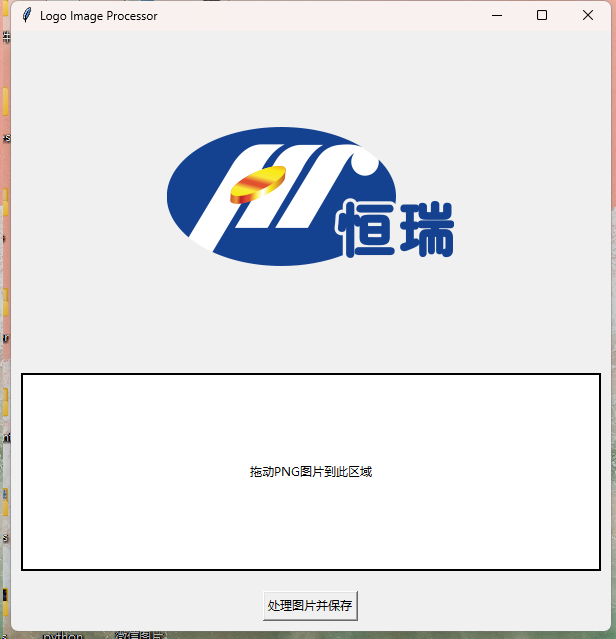
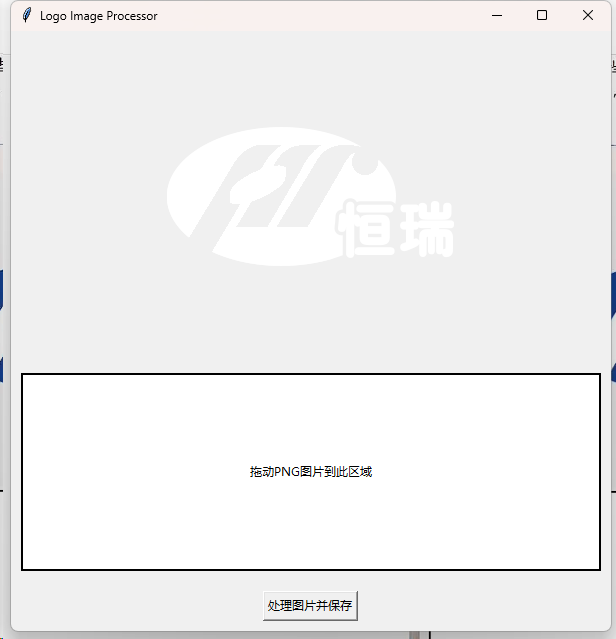
    为了制作一些高大上的风格化 PPT,有时我们需要很多客户的反白色LOGO,以符合当下的一些设计潮流。

    目前常用的做法是在 PPT中对图片本身进行亮度调整,可以理解为一键过曝,但是这对于一些本身就含有白色的图片不适用,也无法处理JPG的图片,更没法快速将反白的图片进行批量保存,以便存储成库,在其他场景继续使用。

    因此使用脚本可以防止原来的白色部分混成一团,预先对原LOGO白色区域进行透明化,然后对其他颜色区域反白。

    这个脚本目前适用于我的工作环境,包含一些问题,例如如果原来的图标包含白色文字,这样会将其透明化,因此还需按照使用情况进行调整。

    后续考虑加入对JPG进行处理的过程,原理上是对白色部分预先透明度处理,然后后续步骤基本一致,不过使用JPG作为LOGO的客户较少,该功能并不急迫。若要实现该功能,可能需要使用OCR对文字部分预先识别处理,流程上麻烦不少,不过由于wechat-ocr的强大功能,应该也可以稳定呈现,wechat-ocr此前有过一些实践,效果出众,推荐大家使用。

    此外脚本尚未测试灰色部分是否会有问题,目前感觉应该会有问题,若使用中有其他问题会随时更新。

    import tkinter as tk
    from tkinter import filedialog
    from PIL import Image, ImageTk
    import random
    import string
    class ImageProcessor(tk.Tk):
        def __init__(self):
            super().__init__()
            self.title("Logo Image Processor")
            self.geometry("600x600")
            self.image_path = None
            self.images = []  # 用于存储多个图像
            self.image_label = tk.Label(self)
            self.image_label.pack(padx=10, pady=10, fill=tk.BOTH, expand=True)
            
            # 设置拖放区域
            self.drop_area = tk.Label(self, text="拖动PNG图片到此区域", relief="solid", width=30, height=4)
            self.drop_area.pack(padx=10, pady=10, fill=tk.BOTH, expand=True)
            self.drop_area.bind("<Enter>", self.on_drag_enter)
            self.drop_area.bind("<Leave>", self.on_drag_leave)
            self.drop_area.bind("<ButtonRelease-1>", self.on_drop)
            # 添加处理按钮
            self.process_button = tk.Button(self, text="处理图片并保存", command=self.process_images)
            self.process_button.pack(pady=10)
        def on_drag_enter(self, event):
            self.drop_area.config(bg="lightblue")
        def on_drag_leave(self, event):
            self.drop_area.config(bg="white")
        def on_drop(self, event):
            file_paths = filedialog.askopenfilenames(filetypes=[("PNG files", "*.png")])
            if file_paths:
                self.load_images(file_paths)
        def load_images(self, paths):
            self.images = []  # 清空当前图像列表
            for path in paths:
                image = Image.open(path).convert("RGBA")  # 确保加载为RGBA格式以处理透明度
                self.images.append((path, image))  # 存储图像及其路径
            if self.images:
                self.display_image(self.images[0][1])  # 显示第一张图片
        def display_image(self, image):
            image_tk = ImageTk.PhotoImage(image)
            self.image_label.config(image=image_tk)
            self.image_label.image = image_tk
        def process_images(self):
            if self.images:
                for original_path, image in self.images:
                    # 获取图像的每个像素
                    pixels = image.load()
                    width, height = image.size
                    
                    for x in range(width):
                        for y in range(height):
                            r, g, b, a = pixels[x, y]
                            
                            # 将白色部分透明化
                            if r == 255 and g == 255 and b == 255:
                                pixels[x, y] = (255, 255, 255, 0)  # 将白色变为透明
                            elif a != 0:  # 如果是非透明区域
                                # 将所有非透明区域变为纯白色
                                pixels[x, y] = (255, 255, 255, a)  # 变为白色,保持原透明度
                    
                    # 生成随机字符并保存处理后的图像
                    random_suffix = ''.join(random.choices(string.ascii_letters + string.digits, k=6))
                    output_path = f"processed_logo_{random_suffix}.png"
                    image.save(output_path)
                    print(f"处理后的LOGO图片已保存为 {output_path}")
                    
                # 更新显示处理后的图片(显示第一张图像)
                self.display_image(self.images[0][1])
    if __name__ == "__main__":
        app = ImageProcessor()
        app.mainloop()
    

    此外,还可以对JPG进行处理:

    注意保证输入图片的分辨率,其平滑操作对分辨率会有一定的损失。

    import tkinter as tk
    from tkinter import filedialog, messagebox
    from PIL import Image, ImageFilter
    import random
    import string
    import os
    class ImageProcessor(tk.Tk):
        def __init__(self):
            super().__init__()
            self.title("Logo Image Processor")
            self.geometry("400x200")  # 设置主窗口大小
            self.image_path = None
            self.images = []  # 用于存储多个图像
            self.processed_images = []  # 用于存储处理后图像路径
            # 设置拖放区域
            self.drop_area = tk.Label(self, text="拖动PNG或JPG图片到此区域", relief="solid", width=30, height=4)
            self.drop_area.pack(padx=10, pady=10, fill=tk.BOTH, expand=True)
            self.drop_area.bind("<Enter>", self.on_drag_enter)
            self.drop_area.bind("<Leave>", self.on_drag_leave)
            self.drop_area.bind("<ButtonRelease-1>", self.on_drop)
            # 添加处理按钮
            self.process_button = tk.Button(self, text="处理图片并保存", command=self.process_images)
            self.process_button.pack(pady=10)
            # 添加选择输出路径按钮
            self.output_dir = None
            self.select_output_button = tk.Button(self, text="选择保存路径", command=self.select_output_dir)
            self.select_output_button.pack(pady=5)
        def on_drag_enter(self, event):
            self.drop_area.config(bg="lightblue")
        def on_drag_leave(self, event):
            self.drop_area.config(bg="white")
        def on_drop(self, event):
            file_paths = filedialog.askopenfilenames(filetypes=[("Image files", "*.png *.jpg *.jpeg")])
            if file_paths:
                self.load_images(file_paths)
        def load_images(self, paths):
            self.images = []  # 清空当前图像列表
            for path in paths:
                try:
                    image = Image.open(path)
                    # 将JPG图像转换为支持透明度的RGBA格式
                    if image.mode != "RGBA":
                        image = image.convert("RGBA")
                    self.images.append((path, image))  # 存储图像及其路径
                except Exception as e:
                    print(f"无法加载图像 {path}: {e}")
                    messagebox.showerror("错误", f"无法加载图像 {path}")
                    
        def select_output_dir(self):
            self.output_dir = filedialog.askdirectory()
            if self.output_dir:
                print(f"选择的输出目录是: {self.output_dir}")
            
        def process_images(self):
            if not self.images:
                messagebox.showwarning("警告", "请先加载图片")
                return
            
            if not self.output_dir:
                messagebox.showwarning("警告", "请先选择保存路径")
                return
            for original_path, image in self.images:
                pixels = image.load()
                width, height = image.size
                
                for x in range(width):
                    for y in range(height):
                        r, g, b, a = pixels[x, y]
                        
                        # 将接近白色的区域透明化,设置阈值范围 (240, 240, 240) 到 (255, 255, 255)
                        if r >= 240 and g >= 240 and b >= 240:
                            pixels[x, y] = (255, 255, 255, 0)  # 将接近白色的部分变为透明
                        elif a != 0:  # 如果是非透明区域
                            # 将所有非透明区域变为纯白色
                            pixels[x, y] = (255, 255, 255, a)  # 变为白色,保持原透明度
                # 对图像进行边缘平滑处理,减少杂色
                image = image.filter(ImageFilter.GaussianBlur(radius=2))
                
                # 生成随机字符并保存处理后的图像
                random_suffix = ''.join(random.choices(string.ascii_letters + string.digits, k=6))
                output_path = os.path.join(self.output_dir, f"processed_logo_{random_suffix}.png")
                image.save(output_path)
                print(f"处理后的LOGO图片已保存为 {output_path}")
                self.processed_images.append(output_path)
    if __name__ == "__main__":
        app = ImageProcessor()
        app.mainloop()
    

  • 【Python】西游记取景地复刻图片合成

    输入两个图片,进行合成,自动在1图标记1986,2图标记2024,图片对齐,保持没有空白,程序自动复位。

    import tkinter as tk
    from tkinter import filedialog, messagebox
    from PIL import Image, ImageTk, ImageDraw, ImageFont
    
    class ImageCombinerApp:
        def __init__(self, root):
            self.root = root
            self.root.title("图片合成器")
            
            # 初始化存储的图片路径
            self.first_image_path = None
            self.second_image_path = None
            
            # 创建界面组件
            self.create_widgets()
        
        def create_widgets(self):
            # 第一张图片上传按钮
            self.btn_upload_first = tk.Button(self.root, text="上传第一张图片", command=self.upload_first_image)
            self.btn_upload_first.grid(row=0, column=0, padx=10, pady=10)
            
            # 第二张图片上传按钮
            self.btn_upload_second = tk.Button(self.root, text="上传第二张图片", command=self.upload_second_image)
            self.btn_upload_second.grid(row=0, column=1, padx=10, pady=10)
            
            # 合成按钮
            self.btn_combine = tk.Button(self.root, text="合成图片", command=self.combine_images)
            self.btn_combine.grid(row=1, column=0, columnspan=2, padx=10, pady=10)
            
            # 显示图片区域
            self.image_panel = tk.Label(self.root)
            self.image_panel.grid(row=2, column=0, columnspan=2, padx=10, pady=10)
    
        def upload_first_image(self):
            file_path = filedialog.askopenfilename(title="选择第一张图片", filetypes=[("Image files", "*.jpg;*.jpeg;*.png")])
            if file_path:
                self.first_image_path = file_path
                messagebox.showinfo("图片上传", "第一张图片已成功上传。")
        
        def upload_second_image(self):
            file_path = filedialog.askopenfilename(title="选择第二张图片", filetypes=[("Image files", "*.jpg;*.jpeg;*.png")])
            if file_path:
                self.second_image_path = file_path
                messagebox.showinfo("图片上传", "第二张图片已成功上传。")
        
        def combine_images(self):
            if not self.first_image_path or not self.second_image_path:
                messagebox.showerror("错误", "请先上传两张图片。")
                return
            
            img1 = Image.open(self.first_image_path)
            img2 = Image.open(self.second_image_path)
    
            # 检查并缩放图像,如果图像的尺寸超过指定最大尺寸
            img1 = self.resize_image(img1)
            img2 = self.resize_image(img2)
    
            # 统一宽度,按比例调整高度
            img1, img2 = self.resize_images_to_same_width(img1, img2)
    
            # 添加年份文字到图片
            self.add_text_to_image(img1, "1986")
            self.add_text_to_image(img2, "2024")
            
            width1, height1 = img1.size
            width2, height2 = img2.size
            
            new_image = Image.new('RGB', (width1, height1 + height2), (255, 255, 255))
            new_image.paste(img1, (0, 0))
            new_image.paste(img2, (0, height1))
            
            output_path = filedialog.asksaveasfilename(defaultextension=".jpg", filetypes=[("JPEG files", "*.jpg"), ("PNG files", "*.png")])
            if output_path:
                new_image.save(output_path)
                messagebox.showinfo("图片合成", f"图片已成功合并并保存到 {output_path}")
                
                new_image.thumbnail((300, 300))
                tk_image = ImageTk.PhotoImage(new_image)
                self.image_panel.config(image=tk_image)
                self.image_panel.image = tk_image
            
            self.first_image_path = None
            self.second_image_path = None
            self.image_panel.config(image='')
            messagebox.showinfo("复位", "程序已复位,可重新上传图片。")
    
        def resize_image(self, img, max_size=(2000, 2000), max_ratio=0.8):
            # 检查图像大小是否超过最大尺寸
            width, height = img.size
            max_width, max_height = max_size
            # 缩放比例,确保图像不超出最大宽度和高度
            ratio = min(max_width / width, max_height / height, max_ratio)
            
            if ratio < 1:
                new_width = int(width * ratio)
                new_height = int(height * ratio)
                img = img.resize((new_width, new_height), Image.LANCZOS)
            return img
    
        def resize_images_to_same_width(self, img1, img2):
            # 获取两张图的宽度
            width1, height1 = img1.size
            width2, height2 = img2.size
            
            # 选择较小的宽度
            new_width = min(width1, width2)
            
            # 计算按比例缩放后的高度
            new_height1 = int(height1 * (new_width / width1))
            new_height2 = int(height2 * (new_width / width2))
            
            # 调整大小
            img1 = img1.resize((new_width, new_height1), Image.LANCZOS)
            img2 = img2.resize((new_width, new_height2), Image.LANCZOS)
            
            return img1, img2
    
        def add_text_to_image(self, image, text):
            draw = ImageDraw.Draw(image)
            
            # 获取图片宽度并计算字体大小
            image_width = image.size[0]
            font_size = int(image_width * 0.10)  # 字体大小为图片宽度的 10%
            
            # 设置自定义字体路径
            font_path = r"C:\Users\Lumix\AppData\Local\Microsoft\Windows\Fonts\LCD-BOLD-5.ttf"
            
            try:
                font = ImageFont.truetype(font_path, font_size)
            except IOError:
                font = ImageFont.load_default()
            
            # 设置文字位置、颜色等
            text_position = (10, 10)
            text_color = (255, 165, 0)  # 橙黄色
            stroke_color = (139, 0, 0)  # 深红色描边
            
            # 绘制描边(文字偏移)
            for offset in [-2, 0, 2]:
                draw.text((text_position[0] + offset, text_position[1] + offset), text, fill=stroke_color, font=font)
            
            # 绘制橙黄色文字
            draw.text(text_position, text, fill=text_color, font=font)
    
    # 创建并运行应用
    root = tk.Tk()
    app = ImageCombinerApp(root)
    root.mainloop()
    

    获取西游记的对应图片,可以对小红书已经合成的图片进行裁切,由于我这边看到的很多图都是一比一组合的,因此可以很方便将图片分开:

    import sys
    import random
    import string
    from PIL import Image
    
    def generate_random_filename():
        return ''.join(random.choices(string.digits, k=8)) + '.jpg'
    
    def split_image(image_path):
        # 打开图像
        image = Image.open(image_path)
        width, height = image.size
        half_height = height // 2
    
        # 分割图像
        upper_half = image.crop((0, 0, width, half_height))
        lower_half = image.crop((0, half_height, width, height))
    
        # 生成随机文件名
        upper_filename = generate_random_filename()
        lower_filename = generate_random_filename()
    
        # 保存分割后的图像
        upper_half.save(upper_filename)
        lower_half.save(lower_filename)
    
        print(f"图像已成功分割并保存为 {upper_filename} 和 {lower_filename}")
    
    if __name__ == "__main__":
        # 检查是否提供了图像路径
        if len(sys.argv) < 2:
            print("请将图像文件拖动到此脚本上运行。")
        else:
            # 获取图像路径
            image_path = sys.argv[1]
            split_image(image_path)
    
  • 【Python】简单的按照文件类型批量分拣到对应文件夹的脚本

    快速分拣你乱乱的桌面

    import os
    import shutil
    
    # 定义文件类型和对应的文件夹
    file_types = {
        'Images': ['.jpg', '.jpeg', '.png', '.gif', '.bmp', '.tiff', '.webp'],  # 添加了 .webp 格式
        'Documents': ['.pdf', '.docx', '.xlsx', '.pptx', '.txt', '.doc', '.xls', '.ppt'],  # 添加了 .doc, .xls, .ppt 格式
        'Videos': ['.mp4', '.avi', '.mkv', '.mov'],
        'Audio': ['.mp3', '.wav', '.flac'],
        'Archives': ['.zip', '.rar', '.7z'],
        'Blender': ['.blend', '.blend1'],  # Blender 文件
        'AI源文件': ['.ai']  # AI 文件
    }
    
    # 指定文件夹路径
    folder_path = r"D:\2024-9-new"  # 修改为你的文件夹路径
    
    # 创建目标文件夹(如果不存在)
    for folder_name in file_types.keys():
        file_type_folder = os.path.join(folder_path, folder_name)
        os.makedirs(file_type_folder, exist_ok=True)  # 使用 exist_ok=True 避免重复检查
    
    # 遍历指定文件夹中的文件,按类型分类
    for filename in os.listdir(folder_path):
        file_path = os.path.join(folder_path, filename)
    
        if os.path.isfile(file_path):
            file_extension = os.path.splitext(filename)[1].lower()
    
            for category, extensions in file_types.items():
                if file_extension in extensions:
                    destination = os.path.join(folder_path, category, filename)
    
                    # 检查是否已经存在文件
                    if not os.path.exists(destination):
                        shutil.move(file_path, destination)
                        print(f"文件 {filename} 已移动到 {category} 文件夹。")
                    else:
                        print(f"文件 {filename} 已存在于 {category} 文件夹,跳过移动。")
                    break